
Full documentation, downloads, and deployment tools available
Sign in with your KodeMed account to access DevOps guides, Windows installer, and Linux packages.
Sign in for full accessPlatform Overview
Here you can see the system overview. Downloads are available in the sections below.
Server
REST API, WebSocket, session management, audit logging
Spring Boot • Port 8080DataServer
ICD-10, CHOP, ATC catalogs, SwissDRG classification data
Spring Boot • Port 8081Grouper
SwissDRG, TARPSY, ST Reha real-time grouping engine
Spring Boot • Port 8082SearchServer
Lucene thesaurus search — one instance per language (de / fr / it); base component, not optional
Spring Boot / Lucene • Ports 8083–8085CodingUI
React web interface with 14+ data blocks, multilingual
React / Vite • Port 3000COM DLL
In-process HIS integration for .NET, VB6, VBA, C#, Delphi
Windows • KodeMed.dllCodingClient
System tray app, WebSocket, webhook, auto-reconnect
Windows • WebView2 • MSISystem Requirements
What you need to run KodeMed — the server side (where the services run) and the client side (the coder’s workstation or your HIS).
Server
Hosts the KodeMed services (Server, DataServer, Grouper, SearchServer, CodingUI) plus the database. Choose Docker Compose, native, or OpenShift (Helm).
Docker Compose recommended
Native install (no Docker)
OpenShift clusters are supported via the Helm chart. Full details in Linux Server and the DevOps Guide.
Client
How a coder reaches KodeMed: a browser, the Windows tray client, or your HIS via the in-process COM DLL.
Web browser (no install)
Windows client (MSI)
COM DLL (HIS integration)
Step-by-step in Windows Client and Integration.
Security & Compliance
Authentication
- OAuth2 / OpenID Connect (SSO)
- Keycloak, Azure AD, Okta compatible
- JWT token validation on every request
- Per-client credentials (DLL, UI, Portal)
- Role-based access:
kodemed-admin,-coder,-coder-controller,-approver,-auditor. Thekodemed-coder-controllersupervisor role may correct a case's admission/discharge values (opt-in per instance viakodemed.admin-edit.enabled), audited
Data Protection
- GDPR Art. 32 & Swiss nFADP (nDSG) Art. 8 — AES-256-GCM encryption at rest (enabled by default by the installer)
- TLS 1.2+ on all external / client-facing traffic; services run on an isolated private network
- No persistent patient data on the client — browser session data is ephemeral & AES-256-GCM encrypted
- Configurable data retention with automatic purge (default 90 days)
Audit & Logging
- Full audit trail for all coding sessions (incl. admission/discharge corrections)
- User, timestamp, action, IP address
- Structured JSON logs (ELK / Splunk ready)
- 90-day default retention (configurable)
Container Security
Hardening varies by deployment mode. The canonical demo compose is a development convenience and is not hardened. Production must use Helm or the wizard preset.
| Setting | Helm (OpenShift) | Wizard preset | Demo compose |
|---|---|---|---|
| runAsNonRoot | yes (1001 / 101) | UI only (101) | no |
| readOnlyRootFs | yes | UI, Keycloak, Postgres | no |
| cap_drop ALL | yes | UI, Keycloak, Postgres | no |
| no-new-privileges | yes | yes (all services) | no |
| Network policy | yes | no (flat network) | no |
| seccomp profile | yes | no | no |
Wizard and Helm hardening for Java services (Server, DataServer, Grouper) is being aligned in issue #506.
Licensing
- RSA-4096 signed offline license file
- Per-component validation (Server, DataServer, Grouper)
- License types: DEMO, TRIAL, PRODUCTION
- API status:
GET /api/v1/license/status
Documentation
Markdown Documentation
- System Architecture MD
- Integration Guide MD
- HIS REST Integration Specification Partners MD PDF
- Update & Lifecycle Policy MD
- OpenShift Deployment Policy MD
- Rocky Linux 9 — Install Runbook Podman MD
- Red Hat Enterprise Linux 9 — Install Runbook Podman MD
- Ubuntu 22.04 / 24.04 LTS — Install Runbook Docker MD
- TLS Certificate Guide (production cert, valid for years) MD
Windows Client
MSI Installer
No admin rights required. Installs per-user to %LOCALAPPDATA%\KodeMed. Supports silent mode for enterprise deployment (GPO, SCCM, Intune).
Download MSI
Silent install: msiexec /i KodeMed.msi /quiet /norestart SERVERURL="https://kodemed.hospital.ch"
COM DLL Partners · Delphi / VB6 / .NET COM
For HIS / 3rd-party Windows applications that integrate via the COM DLL path (Integration Guide §3 — Option A). The COM component is delivered by the KodeMed MSI: install it in COM-only mode (no coding client) and the installer registers the COM object for you — no extracting, no Unblock-File, no regsvr32.
⚠ Prerequisite: the COM host is framework-dependent (.NET does not support self-contained COM hosting), so it needs the Microsoft .NET Desktop Runtime 9 (x64) on the machine — otherwise New-Object "KodeMed.Coding" fails with 0x80008093 / 0x80008083. Get it from dotnet.microsoft.com/download/dotnet/9.0 (“.NET Desktop Runtime 9.0.x”, x64). The MSI checks for it and warns if missing (install still completes; add the runtime, then COM works — no reinstall). The Coding Client app is self-contained and needs no runtime.
- KodeMed.msi (COM DLL base + optional Coding Client)Download MSI
Install (COM DLL only)
:: COM DLL only, machine-wide (recommended for a HIS/Opale server). Use /qn (silent):
:: it applies INSTALLCODINGCLIENT=0 without the UI, so the COM-only choice always sticks.
msiexec /i KodeMed.msi INSTALLCODINGCLIENT=0 ALLUSERS=1 /qn

:: COM DLL only, per-user (no admin, registers HKCU):
msiexec /i KodeMed.msi INSTALLCODINGCLIENT=0 /qn

:: Full install (COM DLL + Coding Client app):
msiexec /i KodeMed.msi
The installer registers the COM object itself — per-user (HKCU) or machine-wide (HKLM) to match the install scope — so there are no HKCU/HKLM conflicts and no manual step. Uninstall via Settings › Apps removes the registration cleanly. The MSI UI also offers the same choice via the “Install the Coding Client” checkbox.
Fleet / by group: deploy the MSI per-machine via Group Policy Software Installation (assigned to the target OU / security group) with INSTALLCODINGCLIENT=0 ALLUSERS=1.
Configure the DLL (server URLs + self-signed)
Drop a kodemed-client-config.json next to KodeMed.dll — the DLL auto-loads it at startup (no code needed). Start from the bundled kodemed-client-config.example.json:
{
  "serverUrl":        "https://YOUR_HOST:8443",   // API + WebSocket — NOT :443 (that's the UI)
  "codingUIUrl":      "https://YOUR_HOST",         // the CodingUI (:443) for the embedded window
  "dataServerUrl":    "https://YOUR_HOST:8444",
  "grouperServerUrl": "https://YOUR_HOST:8445",
  "oauth2Url":        "https://YOUR_HOST:9443",
  "oauth2Realm":      "kodemed",
  "oauth2ClientId":   "kodemed-dll",
  "trustSelfSignedCertificates": true              // ONLY for self-signed / IP (eval)
}
Ports matter (IP + Caddy preset): the API and WebSocket are on :8443, not :443 (the UI). A URL without the port hits the UI and fails with a JSON/HTML or WebSocket 200 vs 101 error.
trustSelfSignedCertificates: true lets the DLL accept a self-signed cert (REST + embedded WebView2). For production, prefer a real cert from your CA (see TLS Certificate Guide) — or import the server CA into the Windows store (CurrentUser\Root needs no admin) — and leave this false. A host app can also pass the config at runtime via SendConfig(), which overrides the file.
Then create the COM object — ProgID = KodeMed.Coding, CLSID = {F6E73053-8D49-480F-AC06-4E0A4882373F}.
// Delphi
var Coding: Variant;
Coding := CreateOleObject('KodeMed.Coding');
Coding.DoCoding(spigesXml, 0);  // 0 = FormatType.SpiGes

' VB6
Dim Coding As Object
Set Coding = CreateObject("KodeMed.Coding")
Coding.DoCoding spigesXml, 0   ' 0 = FormatType.SpiGes
Full reference: Integration Guide §3 Option A — COM DLL Integration.
Advanced Options — Enterprise deployment (IT administrators)
Silent Install — MSI (GPO / SCCM / Intune)
MSI properties:
SERVERURL (required, must be https://) •
LANGUAGE — de, fr, it, en (default: auto-detect) •
AUTOSTART — 1 or 0 (default: 1) •
TRUSTSELFSIGNED — 1 for self-signed certs (default: 0) •
INSTALLDIR (default: %LOCALAPPDATA%\KodeMed)
Config location: %LOCALAPPDATA%\KodeMed\kodemed-client-config.json (edit this file to change settings after installation)
Prerequisites: Windows 10+, WebView2 Runtime (pre-installed on Windows 10 21H2+ and Windows 11)
Server URL Format
The Server URL must use HTTPS. The format depends on your server deployment:
| Docker + Caddy (IP) | https://192.168.1.100:8443 |
| Docker + Caddy (hostname) | https://kodemed.hospital.ch:8443 |
| Docker + subdomain proxy | https://server.kodemed.hospital.ch |
| OpenShift / Kubernetes | https://kodemed-server.apps.hospital.ch |
| Native + reverse proxy | https://kodemed.hospital.ch (proxy forwards to port 8080) |
Note: HTTP URLs are not supported except for http://localhost during development. Use TRUSTSELFSIGNED=1 only with self-signed certificates (Caddy IP mode).
Individual Files
Linux Server
Two Deployment Options
| Docker Compose (recommended) | Native Install | |
|---|---|---|
| HTTPS | Caddy via overlay (docker-compose.caddy.yml) or your own reverse proxy | Requires your own reverse proxy (nginx, Apache, HAProxy) |
| Database | PostgreSQL included in containers | You must install and configure PostgreSQL 15+ separately |
| SSO | Any OIDC IDP (Keycloak / Azure AD / Okta / Auth0 / Ping / Authelia / …); or check “Include bundled Keycloak” in the wizard for a turnkey IDP with LDAP / AD federation built in | Any OIDC IDP required (no bundled option) |
| Updates | docker compose pull && docker compose up -d | Re-run install-kodemed.sh |
| Best for | Most deployments, quick setup | Hospitals that require native services (no Docker) |
For the full picture of how the compose layers, TLS termination and the OIDC IDP (bundled Keycloak or your own) fit together, see DevOps Guide → Compose layers.
Docker Compose Deployment (recommended)
Use the Deployment Wizard to generate a ready-to-use package. All services, database, and HTTPS are included.
Native Install (no Docker)
Contains Server, DataServer, GrouperServer, SearchServer (Lucene thesaurus search, DE/FR/IT), CodingUI, and installer scripts. The installer creates systemd services and generates all configuration files interactively.
- kodemed-linux-2026.9.10.1948.tar.gzDownload
Before You Start
- Install PostgreSQL and create the database:
sudo apt install -y postgresql postgresql-contribsudo systemctl enable --now postgresqlsudo -u postgres psql -c "CREATE USER kodemed WITH PASSWORD 'YOUR_SECURE_PASSWORD';"sudo -u postgres psql -c "CREATE DATABASE kodemed OWNER kodemed;"
- Verify PostgreSQL is running before running the installer:
sudo systemctl status postgresqlsudo -u postgres psql -c "SELECT 1"
- The installer will ask for the database URL, username, and password. Have these ready.
- The installer will ask if you are behind a reverse proxy. For production, answer yes and provide your HTTPS URLs. HTTP is only for localhost testing.
After Installation — Verify
First startup takes 2–5 minutes while the database schema is created and classification data is imported. Check progress with journalctl -u kodemed-server -f.
License File — per-service requirement
The native installer creates one systemd unit per service, each with its own WorkingDirectory (/opt/kodemed/server/, /opt/kodemed/dataserver/, /opt/kodemed/grouperserver/). The license validator resolves ./kodemed.license relative to the running service’s WorkingDirectory, not to the install root. A single license at $INSTALL_DIR/kodemed.license will be ignored and services will fail with HTTP 402.
Choose one of these options:
- Copy the same
kodemed.licenseinto each service directory:sudo cp kodemed.license /opt/kodemed/server/sudo cp kodemed.license /opt/kodemed/dataserver/sudo cp kodemed.license /opt/kodemed/grouperserver/sudo systemctl restart kodemed-server kodemed-dataserver kodemed-grouperserver - OR set
KODEMED_LICENSE_FILEto an absolute path in/etc/kodemed/kodemed.envso all three services read the same file:sudo install -d /etc/kodemedsudo cp kodemed.license /etc/kodemed/echo 'KODEMED_LICENSE_FILE=/etc/kodemed/kodemed.license' | sudo tee -a /etc/kodemed/kodemed.envsudo systemctl restart kodemed-server kodemed-dataserver kodemed-grouperserver
Verify with journalctl -u kodemed-server | grep -i license. A successful load logs "License loaded: customer=… expires=…". HTTP 402 on any endpoint means the license was not found.
Support
Technical support and documentation: support.kodemed.ch
Deployment Wizard Docker Compose
This wizard generates a ready-to-use deployment package for your hospital’s on-premise server. Fill in the fields below and click Download ZIP to get:
docker-compose.yml— orchestrates all KodeMed services (Server, DataServer, Grouper, SearchServer DE/FR/IT, CodingUI, PostgreSQL).env— passwords, URLs, and settings (keep this file secure)runtime-config.js— browser configuration for the CodingUI
1. Public URLs (browser-accessible — used by CodingUI and DLL clients)
These are the URLs your users will access from their browser or DLL client. They must be reachable externally (via reverse proxy, load balancer, or direct).
2. Internal Service URLs (Docker network — usually keep defaults)
These are the internal Docker network URLs used in docker-compose.yml. Keep the defaults unless you use an external reverse proxy or custom network.
3. Database
KodeMed requires PostgreSQL 15+. You can use the bundled container or connect to your hospital’s existing database server.
4. Authentication (OIDC / SSO)
KodeMed authenticates every request against an OIDC-compliant Identity Provider. Point it at the one you already run (Keycloak, Azure AD, Okta, Auth0, Ping, Authelia, …), or include the bundled Keycloak below.
Bundled Keycloak is included so hospitals with an existing LDAP or Active Directory get SSO for KodeMed without standing up a separate IDP — Keycloak federates straight into the directory and users sign in with their hospital credentials. Already running Keycloak / Azure AD / Okta / …? Leave the box unchecked and point the Issuer URI above at your existing IDP.
5. Security & Advanced Options
Optional settings for GDPR compliance, CORS, and logging. Sensible defaults are provided — only change if your infrastructure requires it.
Quick Start
After downloading the ZIP, deploy on your Linux server. These steps mirror the README.md shipped in the zip — single source of truth.
Keycloak Admin Console (bundled SSO)
After deployment, manage users and SSO settings:
| Admin Console | https://HOST:9443/admin |
| Username | admin |
| Password | see KEYCLOAK_ADMIN_PASSWORD in .env |
Demo users (for KodeMed application login):
Classification Data (required for coding)
Classification data is distributed as a pre-packaged OCI artifact in Harbor. Pull it with the ORAS CLI before first start:
The package contains all required files (~45 files, ~50 MB):
- ICD-10-GM / CIM-10-GM — ClaML XML + metadata + alphabetical indexes (DE/FR/IT)
- CHOP — systematic + alphabetical indexes (DE/FR/IT)
- SwissDRG — Fallpauschalenkatalog + Begleitdokumente (CCL, POA, plausibility)
- TARPSY + ST Reha — PCG/RCG catalogs + Zusatzentgelte
- High-Cost Medications — substance lists + Technisches Begleitblatt
- KodeMed Abbreviations — medical abbreviation dictionaries (DE/FR/IT)
- Coding Rules — ICD-FAQ + CHOP-FAQ coding guidelines (DE/FR/IT)
The DataServer imports these files automatically on startup. Without data, KodeMed starts but search is not available.
Data sources: ICD-10-GM from BfArM, Swiss translations from BFS, DRG/TARPSY/ST Reha from SwissDRG AG. Packaged by KodeMed AG.
Docker Registry Access
Each customer receives unique credentials for the KodeMed Docker registry (harbor.mieresit.com). You must log in before running docker compose up.
Important: Robot account usernames contain a $ character (e.g., robot$demo-kodemed). On Linux/macOS, you must wrap the username in single quotes to prevent shell expansion:
No credentials yet? Contact support@kodemed.ch to request your Harbor registry access.
Common error: authorization failed: no basic auth credentials — run docker login first. Credentials persist until docker logout.
License: A demo license (3 months) is included in the ZIP. For production, contact support@kodemed.ch for a production license. Without a valid license, all API endpoints return HTTP 402.
All services start automatically. The CodingUI will be available on port 3000 (or on HTTPS port 443 if using the Caddy reverse proxy).
Service URLs — wizard localhost preset only
These URLs apply to the bundle generated by the wizard’s Localhost preset, which ships its own Keycloak. The canonical demo compose at kodemed.ch uses an external Keycloak (sso.kodemed.ch) and exposes services through Caddy on TLS — do not follow this table when inspecting the live demo.
| CodingUI | http://localhost:3000 |
| Server API | http://localhost:8080 |
| DataServer API | http://localhost:8081 |
| GrouperServer API | http://localhost:8082 |
| Keycloak Admin | http://localhost:9080 — admin / admin |
Demo users: demo-admin, demo-coder, demo-approver, demo-viewer, demo-auditor, demo-data-admin — password: KodeMed2026!
IP + HTTPS (Caddy) — Service URLs
| CodingUI | https://SERVER_IP |
| Server API | https://SERVER_IP:8443 |
| DataServer API | https://SERVER_IP:8444 |
| GrouperServer API | https://SERVER_IP:8445 |
| Keycloak Admin | https://SERVER_IP:9443 — admin / admin |
Self-signed certificate: Caddy generates internal TLS certificates. On first access, the browser will show a security warning. You must accept the certificate on each port before the application works:
- Open
https://SERVER_IP:9443→ accept certificate (Keycloak) - Open
https://SERVER_IP:8443→ accept certificate (Server API) - Open
https://SERVER_IP→ accept certificate and use the application
DLL client config (kodemed-client-config.json):
EN: trustSelfSignedCertificates allows the DLL to connect to servers with self-signed TLS certificates. Only use for internal testing — do not enable in production.
DE: trustSelfSignedCertificates erlaubt der DLL, sich mit selbstsignierten TLS-Zertifikaten zu verbinden. Nur für interne Tests verwenden — nicht in Produktion aktivieren.
FR: trustSelfSignedCertificates permet au DLL de se connecter aux serveurs avec des certificats TLS auto-signés. À utiliser uniquement pour les tests internes — ne pas activer en production.
IT: trustSelfSignedCertificates consente alla DLL di connettersi a server con certificati TLS autofirmati. Da utilizzare solo per test interni — non attivare in produzione.
Custom / Wildcard Certificate (production)
To use your own certificate (e.g., wildcard *.hospital.ch) instead of the self-signed certificate, select “Custom certificate” in the wizard’s TLS mode selector. The wizard generates the correct Caddyfile and docker-compose volumes automatically.
Manual setup (if you already have a deployment with self-signed certificates):
- Place your certificate files in a
certs/directory next todocker-compose.yml:certs/cert.pem— full chain (server certificate + intermediate CA)certs/key.pem— private key
- Add volume mounts to the
caddyservice indocker-compose.yml:volumes:- ./Caddyfile:/etc/caddy/Caddyfile:ro- caddy-data:/data- caddy-config:/config- ./certs/cert.pem:/certs/cert.pem:ro- ./certs/key.pem:/certs/key.pem:ro - In
Caddyfile, removelocal_certsand replace everytls internal { on_demand }with:tls /certs/cert.pem /certs/key.pem - In
kodemed-client-config.json, set"trustSelfSignedCertificates": false - Restart:
docker compose down && docker compose up -d
EN: A wildcard certificate (e.g., *.hospital.ch) covers a hostname like kodemed.hospital.ch on all ports. The certificate must be in PEM format. Caddy does not auto-renew custom certificates — you are responsible for renewal.
DE: Ein Wildcard-Zertifikat (z.B. *.hospital.ch) deckt einen Hostnamen wie kodemed.hospital.ch auf allen Ports ab. Das Zertifikat muss im PEM-Format vorliegen. Caddy erneuert benutzerdefinierte Zertifikate nicht automatisch.
FR: Un certificat wildcard (ex. *.hospital.ch) couvre un nom d’hôte comme kodemed.hospital.ch sur tous les ports. Le certificat doit être au format PEM. Caddy ne renouvelle pas automatiquement les certificats personnalisés.
IT: Un certificato wildcard (es. *.hospital.ch) copre un hostname come kodemed.hospital.ch su tutte le porte. Il certificato deve essere in formato PEM. Caddy non rinnova automaticamente i certificati personalizzati.
Note: The GrouperServer requires specs/ and catalogues/ directories with SwissDRG/TARPSY/ST Reha specification files. Contact support for the grouper data package, or download from SwissDRG.org.
Integration All paths
Start here — pick your integration path
KodeMed integrates five ways. Find your row, then read only the diagrams/cards it points to — you don't need to read everything below.
| If you are… | Path | Read |
|---|---|---|
| Windows .NET HIS that can load a DLL | A — COM DLL | DLL sequence diagram + GetResults schema |
| Web HIS with desktop coders + CodingClient | B — REST | REST flow card |
| HIS needing real-time push | C — WebSocket | CodingClient WebSocket diagram + Message-1.0 schema |
| Cloud / multi-tenant HIS, own OIDC, iframe embed | D — HIS REST | REST flow + Webhook Contract cards (most common) |
| You only need a DRG / cost weight, no coder | E — Grouper Direct | Grouper grouping diagram |
All field names on the wire are camelCase (canonical #640). The schema cards near the bottom are the source of truth — validate against them. Each subsection labels what is available today vs planned.
This section documents how a Hospital Information System (HIS) integrates with KodeMed via REST + iframe + outbound webhook, against any OIDC-compliant Identity Provider (Keycloak, Azure AD, Okta, Auth0, Ping, Authelia, …). The contract is HIS-agnostic and IDP-agnostic — KodeMed is not bound to any particular IDP product. The same paths and payloads apply on a self-hosted on-premise deployment and on the cloud-hosted demo.
REST API for HIS Integration
For each case to code, the HIS opens a coding session, embeds the returned URL in an iframe, and either receives the result via webhook or pulls it from a GET endpoint.
Open a coding session
The HIS POSTs the patient SPIGES XML wrapped as data. instanceId is HIS-supplied — it correlates the submission (one POST), not each case inside it. The data payload can carry one or many SPIGES <Fall> elements; they all belong to the same coding session and share the same instanceId. The id MUST be unique — a second POST with an instanceId still in use returns 409 Conflict with the existing sessionId in the body; the id becomes free once the original session completes. KodeMed echoes it back in the webhook so the HIS matches the result against its original submission. sessionId is server-generated.
The 201 response carries sessionId (UUID v4) and redirectUrl. The HIS embeds the redirectUrl in an iframe.
Pull the result (fallback when not using a webhook)
Two identifiers, one source of truth
- instanceId — HIS-supplied correlator for the submitted
datapayload. OneinstanceIdmaps to one POST; the payload may carry one or many SPIGES<Fall>cases — all share this id. MUST be unique across active sessions (duplicate →409 Conflict). Echoed back in the webhook for HIS-side matching. - sessionId — UUID v4 generated by KodeMed when accepting the session. Used by the iframe URL, the result GET, and the webhook payload. Use it for KodeMed-side tracing.
There is no separate correlationId in the contract — only the two above. The OpenAPI spec (linked below) is the source of truth.
Webhook Contract Server-side dispatch — available
For HIS REST integrations, KodeMed fires the webhook server-side when the coder clicks Apply or Discard. The URL, signing strategy, retry schedule and event filter are configured per-IntegrationProfile via the admin API; there are no env vars for this flow. The payload below is the canonical v1.0 wire (#640) and validates against WebhookPayload-1.0.schema.json.
For the legacy DLL flow, the HTTP POST is fired by the DLL itself and configured via the KODEMED_HOOK_* env vars on the Server. See the Configuration Reference → DLL Webhook for that path.
Outbound payload
Retry schedule
- 4 attempts: ~30s, ~2min, ~10min between attempts (configurable per profile).
- HTTP 5xx, 408, 429, network errors → retried.
- HTTP 4xx (except 408, 429) → terminal → payload moves to the dead-letter queue (DLQ).
- DLQ replay through the admin API (#494):
POST /api/v1/admin/webhook-failures/{id}/replay.
Signature verification (HMAC-SHA256)
When webhook.signing=HMAC_SHA256 is set on the IntegrationProfile, the HIS reads the Authorization: HMAC-SHA256 t=<unix>,v1=<hex> header and re-computes HMAC-SHA256 over <t>.<raw body> with the shared secret. Reject the request if the timestamp is older than 5 minutes (replay protection).
Node receiver:
Python receiver:
External OIDC IDP Setup Multi-issuer — #495 in flight
The HIS keeps its own OIDC-compliant Identity Provider — Keycloak, Azure AD, Okta, Auth0, Ping, Authelia, KodeMed’s bundled Keycloak, any vendor that implements OpenID Connect Discovery + RS256-signed JWTs. KodeMed validates the JWT against the configured issuer; no second login on the KodeMed side, no federation, no token exchange.
Issuer configuration
- Issuer URL format: whatever your IDP publishes. Common shapes — Keycloak:
https://<host>/realms/<realm>; Azure AD:https://login.microsoftonline.com/<tenant>/v2.0; Okta:https://<org>.okta.com/oauth2/default. The exact value is what appears in theissclaim of issued tokens. - JWKS auto-discovery via
<issuer>/.well-known/openid-configuration— no manual key exchange. KodeMed readsjwks_urifrom the discovery document and refreshes keys on rotation. - Algorithm: RS256 (asymmetric). HS256 / symmetric secrets are not accepted — they require sharing the signing key with KodeMed, which defeats the IDP boundary.
- Audience (
aud) check: optional; configurable per IntegrationProfile (oidc.audience). - Multi-issuer: KodeMed can validate tokens from N issuers (test + prod, or several HIS partners). Each issuer corresponds to one IntegrationProfile — different partners can run different IDP products side by side.
- The KodeMed host needs HTTPS reachability to the issuer URL.
Required token claims
| Claim | Use | Required |
|---|---|---|
sub | Stable user id; used to map the coder to a local KodeMed user record on first login. | yes |
iss | Must match the configured IntegrationProfile issuer URL. | yes |
exp, iat | Standard JWT lifetime claims. | yes |
realm_access.roles or groups | Role names for authorisation (see below). KodeMed reads realm_access.roles first, falls back to groups. | yes |
aud | Audience; checked when oidc.audience is configured on the profile. | conditional |
preferred_username, email | Useful for the coder mapping on first login (audit trail). | recommended |
Required role names
Configure the following role (or group) names in your IDP so authorisation works by default. On Keycloak that’s a realm role; on Azure AD an app-role mapped through groups; on Okta a group claim. Override the names per profile if the partner cannot use these defaults.
kodemed-coder— access to the coding UI andPOST /api/v1/coding/session.kodemed-admin— access to admin endpoints (/api/v1/admin/*) including DLQ replay.kodemed-viewer— read-only access (optional; not enforced today, planned).
Iframe Embed + CSP Per-profile CSP — #496 in flight
The HIS opens KodeMed’s redirectUrl in an <iframe>. KodeMed sets Content-Security-Policy: frame-ancestors to allow only the configured HIS hostnames; everything else is blocked.
- Configure per IntegrationProfile:
embed.cspFrameAncestors: ["https://your-his-test.example.com", "https://your-his.example.com"](admin API). - Cookies on the KodeMed UI are already
SameSite=None; Secure, so cross-origin iframe sessions work without changes on the HIS side. - Legacy: the demo deployment historically used
X-Frame-Options: DENY. The new flow replaces this with the per-profile CSPframe-ancestors.
OpenAPI Specifications
The full contract is published as OpenAPI 3.1 by every service. Same paths apply on a self-hosted installation — substitute your KodeMed hostname.
| Coding Server (REST + webhook) | Swagger UI · raw spec |
| DataServer (classifications, ICD-10, CHOP, ATC) | Swagger UI · raw spec |
| Grouper (DRG, TARPSY, ST Reha) | Swagger UI · raw spec |
The Authorize button on Swagger UI accepts a test JWT directly, once your realm issuer is configured.
Interconnection Matrix
Which component talks to which. Use this to size a deployment, open firewall holes, or scope a security review. Read each section for a different concern — A is what to expose externally, B is egress your network must allow, C is intra-host wiring (Docker compose / OpenShift), D is local-machine COM bridges.
A. Customer-facing — partner / browser ↔ KodeMed via Caddy on port 443
Open these in the partner firewall. Public URL hosts are the canonical ones (kodemed.ch subdomains); your on-prem install will substitute its own.
| From | To | Public URL (illustrative production names — the live demo uses demo-* prefixes, your on-prem install substitutes its own) | Port | Auth |
|---|---|---|---|---|
| HIS | KodeMed Server | server.kodemed.ch | 443 | OIDC JWT (partner IdP) |
| HIS | KodeMed UI (iframe) | coding-ui.kodemed.ch | 443 | session cookie + CSP frame-ancestors |
| Browser (coder) | KodeMed UI | coding-ui.kodemed.ch | 443 | OIDC code flow |
| Browser | KodeMed Server (REST + WSS) | server.kodemed.ch | 443 | OIDC JWT (user) |
| Browser | DataServer (via Caddy) | data.kodemed.ch | 443 | OIDC JWT (user) |
| Browser | Grouper (via Caddy) | grouper.kodemed.ch | 443 | OIDC JWT (user) |
| CodingClient (tray) | KodeMed Server | wss://server.kodemed.ch/ws/dll | 443 | OIDC JWT |
| Browser | OIDC IdP (auth code flow) | your IdP host | 443 | cookies / TLS |
B. Outbound from KodeMed — egress rules
Allow these in the KodeMed host's outbound firewall. Endpoints reach the public internet (or partner-side webhooks).
| From | To | Protocol | Port | Auth |
|---|---|---|---|---|
| KodeMed Server | HIS webhook | HTTPS POST | partner-defined | HMAC-SHA256 over body |
| KodeMed Server | SMTP relay (feedback) | SMTP / STARTTLS | 587 (or 465) | SMTP basic auth |
| KodeMed Server | GitBucket API (feedback alt) | HTTPS | 443 | bot token (optional transport) |
| Keycloak (KodeMed SSO) | SMTP relay | SMTP / STARTTLS | 587 | SMTP basic auth |
| All services | OIDC IdP — JWKS fetch | HTTPS | 443 | public, periodic re-fetch |
| Customer Docker host | Harbor registry | HTTPS | 443 | robot account / read-only token |
C. Internal — container ↔ container on the host network
These ports are NOT exposed externally. Docker compose wires them on the kodemed network; OpenShift wires them via Services. Open them in firewall ONLY if you split components across hosts.
| From | To | Protocol | Internal port | Auth |
|---|---|---|---|---|
| Caddy | KodeMed UI (nginx) | HTTP | 80 | — |
| Caddy | KodeMed Server | HTTPS REST + WSS | 8080 | JWT pass-through |
| Caddy | DataServer | HTTPS REST | 8081 | JWT pass-through |
| Caddy | Grouper | HTTPS REST | 8082 | JWT pass-through |
| KodeMed Server | DataServer | HTTPS REST | 8081 | service JWT (internal) |
| KodeMed Server | Grouper | HTTPS REST | 8082 | service JWT (internal) |
| Grouper | DataServer | HTTPS REST | 8081 | service JWT (internal) |
| DataServer | SearchServer (DE/FR/IT, optional) | HTTP REST | 8083 / 8084 (native), 8080 (container) | X-Internal-Token shared secret |
| Server / DataServer / Keycloak | PostgreSQL | TCP / TLS | 5432 | password (encrypted at rest) |
D. Local-machine — COM DLL bridge (Windows host only)
In-process COM activation + a loopback WebSocket between the COM DLL and the CodingClient tray. Nothing leaves the workstation.
| From | To | Protocol | Port | Auth |
|---|---|---|---|---|
| HIS (in-process) | KodeMed COM DLL | COM / DCOM | — | local user |
| KodeMed COM DLL | CodingClient (tray) | WebSocket loopback | 9876 | local token |
Auth column conventions — OIDC JWT (user) is the browser-bearer access token (audience: kodemed-ui). service JWT (internal) is the audience-restricted token issued by KodeMed Server to call DataServer / Grouper. HMAC-SHA256 applies only to HIS webhooks. All HTTPS hops carry standard security headers (HSTS, CSP, X-Frame-Options) enforced by SecurityConfig. See Roles & Permissions for the role-name table.
Sequence — HIS REST integration
Happy-path flow from HIS-initiated session create to webhook delivery + result fetch.
sequenceDiagram
    autonumber
    participant HIS as HIS
    participant IDP as Partner OIDC IDP
    participant S as KodeMed Server
    participant UI as KodeMed UI
    participant WH as HIS webhook

    HIS->>IDP: client_credentials
    IDP-->>HIS: JWT
    HIS->>S: POST /api/v1/coding/session
{ data, format:"spiges", source:"API", instanceId }
    S->>S: validate JWT (JWK)
    S->>S: persist session
    S-->>HIS: 201 { sessionId, instanceId, redirectUrl, expiresAt }
    HIS->>UI: load redirectUrl in iframe
    Note over UI: coder edits, presses Apply
    UI-->>S: result
    S->>WH: HMAC-sign + POST (Authorization + X-KodeMed-Signature)
{ eventType, sessionId, instanceId, occurredAt,
format, data, codingResult }
    WH-->>S: 2xx
    opt HIS without webhook
        HIS->>S: GET /api/v1/coding/session/{id}/result/data
        S-->>HIS: 200 data (SPIGES)
    end
If the webhook gets a 5xx/timeout, KodeMed retries with the per-tenant webhookRetryDelaysSeconds (default 30s, 2m, 10m) and persists to the dead-letter queue if all attempts fail (replay via POST /api/v1/admin/webhook-failures/{id}/replay).
Sequence — DLL / CodingClient flow Legacy
In-process integration via the COM DLL for HIS that cannot make HTTPS calls but can load a Windows DLL. Same end-state (modified SPIGES returned to HIS) but the transport is COM ↔ loopback WebSocket ↔ KodeMed Server.
sequenceDiagram
    autonumber
    participant HIS as HIS process
    participant DLL as COM DLL
    participant CC as CodingClient (tray)
    participant S as KodeMed Server
    participant B as Browser

    HIS->>DLL: StartCoding(spiges)
    DLL->>CC: ws://127.0.0.1:9876
    CC->>S: wss /ws/dll
(Authorization: Bearer JWT)
    S-->>CC: dll.connected
    CC->>S: app.coding_session_launch
{ sessionId, data, format }
    S->>B: open in browser
    Note over B: coder edits, presses Apply
    S-->>CC: case.coded
{ sessionId, payload: { action:"APPLIED", data, codingResult } }
    CC-->>DLL: result
    DLL-->>HIS: result (SPIGES)
The DLL writes the modified SPIGES back to the HIS in-process. No outbound webhook is fired in this flow — the HIS already has the result by the time StartCoding returns.
Sequence — Webhook retry + dead-letter
Failure path. Server retries on 5xx / 408 / 429 / network errors with the per-tenant webhookRetryDelaysSeconds schedule; after the last attempt the payload is persisted to the WebhookFailure dead-letter table and an admin can replay it.
sequenceDiagram
    autonumber
    participant S as KodeMed Server
    participant WH as HIS webhook
    participant DLQ as WebhookFailure (DLQ)
    participant ADM as Admin

    S->>WH: attempt 1 (POST)
    WH-->>S: 503
    Note over S: wait 30s
    S->>WH: attempt 2 (POST)
    WH-->>S: timeout
    Note over S: wait 2m
    S->>WH: attempt 3 (POST)
    WH-->>S: 502
    Note over S: wait 10m
    S->>WH: attempt 4 (POST)
    WH-->>S: 502
    S->>DLQ: persist row
{ profileSlug, sessionId, instanceId,
eventType, payload, attempts:4,
lastError, lastHttpStatus }
    ADM->>DLQ: GET /api/v1/admin/webhook-failures
    DLQ-->>ADM: 200 [ {id,…}, … ]
    ADM->>S: POST .../{id}/replay
    S->>WH: replay POST
    WH-->>S: 200
    S->>DLQ: mark row delivered
Retry schedule + max attempts are stored on the IntegrationProfile per partner. Default is 4 attempts at 30s / 2m / 10m (3 delays = retryMax − 1). Idempotency: the Idempotency-Key header is stable across retries so the HIS can dedupe.
Sequence — REST polling fallback
For HIS that cannot host a public webhook endpoint. Create the session, poll for completion. Same end-state as the webhook flow but driven by the HIS.
sequenceDiagram
    autonumber
    participant HIS as HIS
    participant S as KodeMed Server
    participant UI as KodeMed UI

    HIS->>S: POST /api/v1/coding/session
    S-->>HIS: 201 { sessionId, instanceId, redirectUrl, expiresAt }
    HIS->>UI: open redirectUrl in iframe
    Note over UI: coder edits, presses Apply
    UI-->>S: result
    loop poll every 5-30s
        HIS->>S: GET /api/v1/coding/sessions/{sessionId}/status
        S-->>HIS: 200 { status:"COMPLETED", action:"APPLIED" }
    end
    HIS->>S: GET /api/v1/coding/session/{id}/result/data
    S-->>HIS: 200 data (SPIGES)
Recommended poll interval: 5s while the iframe is visible, 30s after it closes. The expiresAt on the create response upper-bounds how long the session is pollable.
Sequence — CodingClient WebSocket /ws/dll
For native desktop integrations that already speak WebSocket. Skip the DLL transport; speak /ws/dll directly to the Server. Same message vocabulary as the DLL flow.
sequenceDiagram
    autonumber
    participant NC as Native client
    participant S as KodeMed Server
    participant B as Browser (UI)

    NC->>S: wss /ws/dll
(Authorization: Bearer JWT
or Sec-WebSocket-Protocol: kodemed.bearer.JWT)
    S-->>NC: dll.connected { instanceId }
    NC->>S: app.coding_session_launch
{ instanceId, data:SPIGES, format:"spiges" }
    S-->>NC: session.created { sessionId }
    S->>B: open in browser
    Note over B: coder Apply
    B-->>S: result
    S-->>NC: case.coded
{ sessionId, payload: { action:"APPLIED", data, codingResult } }
Token auth: prefer Authorization: Bearer <JWT> (server-to-server clients); browsers SHOULD use Sec-WebSocket-Protocol: kodemed.bearer.<JWT> instead. The legacy ?token=<JWT> query param is still accepted but logs a WARN — tokens land in access logs as plaintext. The token is validated at the WebSocket handshake (not per frame). After expiry or any disconnect, reconnect with a refreshed token; the server holds the session-id mapping in-memory for sessionExpiryMinutes.
Sequence — DataServer thesaurus lookup
For HIS that wants to autocomplete ICD-10 / CHOP / ATC codes in its own UI before opening a coding session. Direct REST call against the DataServer.
sequenceDiagram
    autonumber
    participant UI as HIS UI
    participant DS as DataServer
    participant PG as PostgreSQL

    UI->>DS: GET /api/thesaurus/search?q=J96.0
Authorization: Bearer JWT
    DS->>PG: SELECT … LIMIT 20
    PG-->>DS: rows
    DS-->>UI: 200 [ { code, label, version, … } ]
    UI->>DS: GET /api/thesaurus/rules/code/ICD10/J96.0?version=2026
    DS->>PG: SELECT rules WHERE code=$1 AND version=$2
    PG-->>DS: rows
    DS-->>UI: 200 { rules:[ { kind:"INCLUSION", text:"…" }, … ] }
Cached at If-None-Match / ETag; year-versioned so a 2026 lookup can never silently fall back to 2025 data. Full schema in the DataServer Swagger UI.
Sequence — Grouper grouping
For HIS that wants to run a real-time SwissDRG / TARPSY / ST Reha grouping without involving a coder. Direct REST call against the Grouper.
sequenceDiagram
    autonumber
    participant HIS as HIS
    participant G as Grouper
    participant DS as DataServer

    HIS->>G: POST /api/v1/grouper/group
{ tariff:"SWISSDRG", version:"15.0",
patientCase:{ fallId, administratives, diagnosen:[…], behandlungen:[…] } }
    G->>G: load specs + catalogue (cached)
    G->>DS: POST /api/zusatzentgelt/match
    DS-->>G: supplements []
    G-->>HIS: 200 { drg:"E77C", pccl:0,
effectiveCostWeight:0.638, supplements:[…], flags:[…] }
Three tariffs: SWISSDRG (acute), TARPSY (psychiatric), STREHA (rehab) — set tariff in the body. Entry points: POST /api/v1/grouper/group (one case), /group/batch (many cases, JSON), and /spiges/xml/{tariff} (raw SPIGES XML, parses every <Fall>). These are server-to-server calls — a backend HTTP client sends no browser Origin header, so CORS never applies; the CORS allow-list only governs browser-origin calls. GET /api/v1/grouper/versions lists the loaded tariff × version combinations. Response fields (per GroupingResponse): drg, mdc, pccl, baseCostWeight/effectiveCostWeight, supplements, flags, grouperStatus.
Sequence — OIDC login + iframe session cookie
How the clinician's JWT becomes a same-site cookie that survives the iframe load when the UI is embedded inside the HIS page.
sequenceDiagram
    autonumber
    participant B as Browser (HIS page)
    participant IDP as Partner OIDC IDP
    participant UI as KodeMed UI
    participant S as KodeMed Server

    B->>UI: iframe src=redirectUrl
    UI->>S: /actuator/info
    S-->>UI: 200
    UI->>UI: load runtime-config (issuer URL, etc.)
    B->>IDP: (silent) /authorize?prompt=none
    IDP-->>B: 302 with code
    B->>IDP: /token (PKCE)
    IDP-->>B: id_token + access_token + refresh
    B->>UI: set SameSite=None Secure cookie
    UI->>S: REST + WS calls
Authorization: JWT
The HIS site must be listed in IntegrationProfile.embedCspFrameAncestors for the browser to accept the iframe. The SameSite=None cookie attribute is mandatory for cross-origin iframe sessions and is the default for HIS REST integrations.
Schemas JSON Schema + XSD v1.0 canonical (#640)
Validate every wire payload your integration touches against the published schemas. All four wire transports (HIS REST request/response, HIS REST webhook, WebSocket /ws/dll, COM GetResults()) share the same field names + types — one parser per concept on the HIS side. The repo's scripts/test/test-schemas-uniformity.py enforces this on every CI run; partners SHOULD validate their code against the same schemas.
HIS REST (request → response → webhook)
- SessionCreate-1.0.schema.json —
POST /api/v1/coding/sessionrequest - SessionResponse-1.0.schema.json — 201 Created response (sessionId + instanceId + redirectUrl + expiresAt)
- WebhookPayload-1.0.schema.json — outbound webhook (case.coded / case.discarded / session.expired)
WebSocket (CodingClient ↔ Server, full-duplex)
- Message-1.0.schema.json —
/ws/dllenvelope (eventType + occurredAt + payload)
COM DLL (in-process integration, IKodeMed.GetResults())
- GetResults-1.0.schema.json — JSON variant
- GetResults-1.0.xsd — XML variant (when
OutputFormat=Xml)
Case data envelope (SPIGES XML carried inside data)
- SPIGES 1.5 ·
do-d-14.04-SPIGES-2025-02.xsd(“1.5” is KodeMed’s label; the XSDtargetNamespaceishttp://www.bfs.admin.ch/xmlns/gvs/spiges-data— no version suffix)
Shared building blocks (referenced via $ref from the flow schemas above)
_common/Identifier.schema.json— UUID (sessionId, caseId)_common/OpaqueIdentifier.schema.json— partner-controlled string (instanceId)_common/Timestamp.schema.json— ISO-8601 + Z (occurredAt, expiresAt)_common/EventType.schema.json— canonical event-name enum_common/CaseData.schema.json— data + format + dataHash + schemaVersion (composable viaallOf)_common/CodingResult.schema.json— grouper output (DRG, PCCL, cost weight, diagnoses, procedures, supplements, warnings)_common/CaseResult.schema.json— per-case bundle (CaseData + CodingResult, used inside GetResultscases[])
Canonical samples (validator-checked on every CI run)
session-create.jsonsession-response.jsonwebhook-payload.jsonmessage.json— WScase.codedget-results.jsonget-results.xml
See schemas/README.md for the 15 uniformity rules (R1–R15) and the canonical-vs-pre-#640 migration notes. C# / Java / Python validator examples live in the Test.UI partner sample below.
Real test data — the same SPIGES / BFS payloads we use ourselves (CodingUI public landing page + installer demo). Pipe these through your integration end-to-end without inventing your own fixtures. See the data/ README for the full curl walkthrough.
data/session-create-request.json— full REST request body (POST/api/v1/coding/session) with 3-case SPIGES embedded — validates againstSessionCreate-1.0data/sample-spiges.xml— minimal SPIGES 1.4 / 1.5 demo, 3 cases (acute / surgical / rehab)data/test-data-full.xml— realistic Swiss medical cases, ICD-10-GM CH + CHOP 2026 codes (the "Load realistic test data" payload on the CodingUI public page)data/test-data-anonymized.bfs.dat— BFS pipe-delimited format (MX/MB/MD lines). Setformat=bfson the REST call to exerciseBfsTransformer.
Negative examples — one per flow, each intentionally invalid. Use them to validate that your receive-side validator correctly REJECTS malformed input (R10 in the drift detector enforces this end-to-end).
failing/session-create.json— missing requiredinstanceIdfailing/session-response.json—sessionIdnot a UUIDfailing/webhook-payload.json— snake_caseevent_type(pre-#640 drift)failing/message.json— non-canonical"CONNECTED"enum valuefailing/get-results.json— pre-#640codingActiontop-level fieldfailing/get-results.xml— non-UUID sessionId +case_codedunderscore drift
Reference Sample — KodeMed.Test.UI C# / WinForms Apache 2.0
A single-window C# WinForms app that exercises the COM DLL integration surface end-to-end (SendConfig + DoCoding + DoCodingWithFormat + GetResults). The DLL handles REST session create, iframe embed, and WebSocket signalling internally on the partner's behalf — partners reading this sample see only the COM call site. Partners integrating via the HIS REST contract directly (server-to-server, no DLL) MUST implement their own webhook receiver per KodeMed_HIS_REST_Integration_Spec §5.3 and validate against WebhookPayload-1.0.schema.json — the sample's README has the receive-side validator snippets.
- kodemed/KodeMed.Test.UI on GitBucket — canonical source, fork it / open PRs / track upstream
-
KodeMed.Test.UI · offline sources (.csproj + .cs + .ico)
— .NET 9, no bin/obj, ready to
dotnet run
Clone or download:
# Option 1 — clone the GitBucket repo (always up to date)
git clone ssh://git@www.mieresit.com:7777/kodemed/KodeMed.Test.UI.git
cd KodeMed.Test.UI
dotnet run

# Option 2 — offline zip
unzip KodeMed.Test.UI-sources.zip
cd KodeMed.Test.UI
dotnet run
Technical Documentation Confidential
Classification Data
All classification data is pre-packaged and distributed via Harbor OCI artifacts. Pull with the ORAS CLI (one-line install for Linux/macOS/Windows):
On first deployment, files in import-data/ are imported automatically when the DataServer starts. For re-imports, use the DataServer admin API. See the DevOps Guide §14 for details.
Original data sources (packaged by KodeMed AG):
- ICD-10-GM / CIM-10-GM BFS BfArM
- CHOP (DE/FR/IT) BFS
- SwissDRG / TARPSY / ST Reha SwissDRG AG
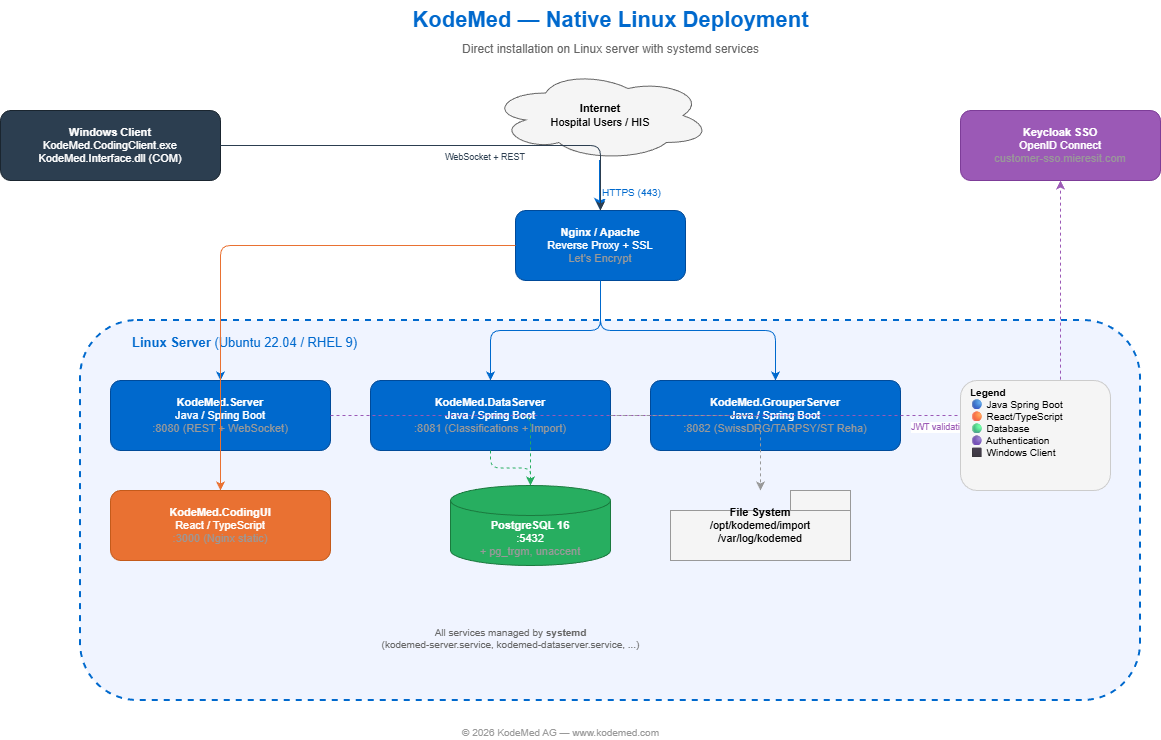
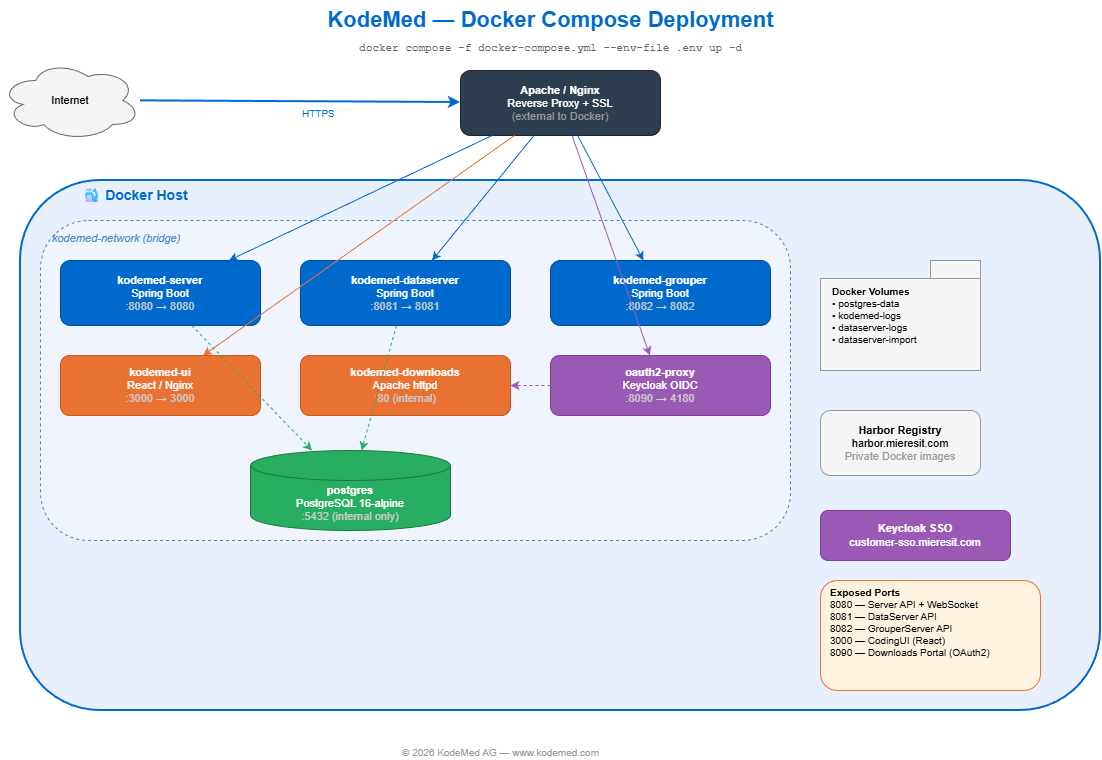
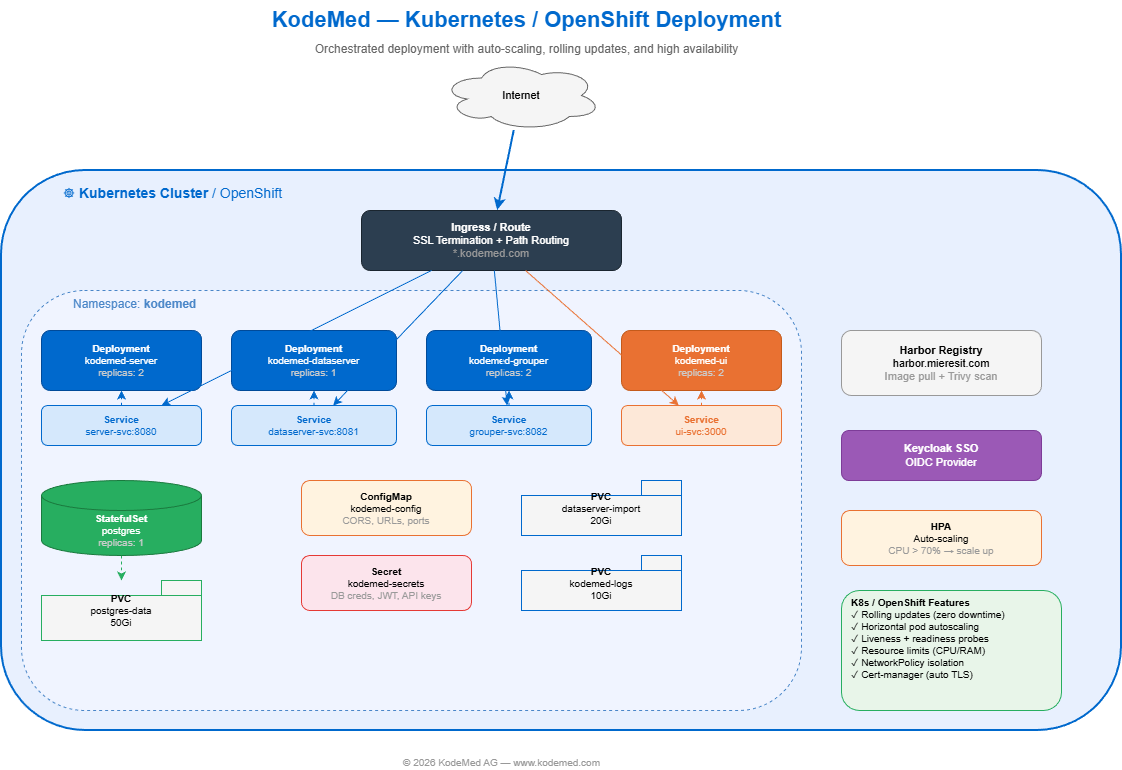
DevOps Guide Confidential
Server Administration & Deployment
Markdown Documentation
- DevOps & Server Admin Guide MD
Compose layers
KodeMed ships in three independently composable layers. The same container images run in every customer deployment; what differs is which layers you compose alongside and where TLS terminates.
Important callouts:
- The app layer’s compose file does not include the TLS layer or the IDP layer — both are pluggable. The Deployment Wizard ships overlay compose files that opt-in to bundled Caddy and / or bundled Keycloak.
- Run with overlays via
docker compose -f docker-compose.yml -f docker-compose.caddy.yml -f docker-compose.keycloak.yml up -d. Drop any overlay you don’t need. - App-layer containers listen only on the Docker bridge by default — they never bind to public ports without an explicit TLS layer in front. That holds for the bundled Caddy overlay, your own reverse proxy, and the OpenShift / Kubernetes path.
- The wizard preset
localhostbundles everything for evaluation (Keycloak on:9443, services onlocalhostports, no Caddy). The wizard presetsaas-domainbundles Caddy with Let’s Encrypt and points at an external IDP. See the Deployment Wizard section.
Troubleshooting
"authorization failed: no basic auth credentials" on docker compose up
You need to log in to the Harbor registry before pulling images:
Enter the Harbor username and password provided by KodeMed AG. The login persists in ~/.docker/config.json and only needs to be done once per machine.
DLL client opens wrong URL (404 on coding page)
KODEMED_PUBLIC_UI_URL is not set. The server returns its own URL instead of the CodingUI URL.
The server logs a warning at startup: CONFIG ⚠ KODEMED_PUBLIC_UI_URL is not set
WebSocket returns HTTP 200 instead of 101
Reverse proxy is not upgrading WebSocket connections. Enable mod_proxy_wstunnel (Apache) or add Upgrade headers (nginx).
Login fails after entering credentials (page reloads or shows error)
After entering the correct username and password, the page reloads back to the login form or shows a connection error. This is usually caused by a KC_HOSTNAME mismatch in the .env file.
Cause: Keycloak uses KC_HOSTNAME and KC_HOSTNAME_PORT to construct redirect URLs after authentication. If these default to localhost:9080, the browser is redirected to https://localhost:9080/... which does not exist.
Fix: In .env, set the correct values for your setup:
Then restart: docker compose down && docker compose up -d
Tip: Also verify OIDC_ISSUER_URI matches. It should be https://YOUR_HOST:9443/realms/kodemed.
"admin" account does not work on the login page
The admin account is the Keycloak administrator (master realm). It only works at the Keycloak admin console: https://HOST:9443/admin.
To log into the KodeMed application, use one of the demo accounts:
The Keycloak admin password is in your .env file: KEYCLOAK_ADMIN_PASSWORD.
Self-signed certificate: browser blocks API calls or login
When using Caddy with self-signed certificates, each port has a separate certificate. The browser must accept each one individually before the application works.
Open these URLs in order and accept the certificate warning on each one:
https://HOST:9443— Keycloak (required for login)https://HOST:8443— Server API (required for data)https://HOST:8444— DataServer API (required for classifications)https://HOST— CodingUI (the application)
If you skip a port, the browser silently blocks requests to that service and the app appears broken. For production, use a custom certificate (see the Deployment Wizard → TLS Certificate Mode → Custom certificate).
Login works but UI is empty / shows "CORS Failed" / WebSocket error 1015 in console
You log in successfully (the console shows Logged in as: demo-coder), but the UI stays empty or hangs on a spinner. The browser console contains one or more of:
CORS FailedonXHROPTIONS https://HOST:8443/api/v1/...Code d'état : (null)/Status: (null)— the preflight never received a response[WebSocket] Connection errorfollowed bycode: 1015Firefox ne peut établir de connexion avec le serveur à l'adresse wss://HOST:8443/ws/dll...
Cause: WebSocket close-code 1015 is the standard signal for TLS handshake failure. The browser has accepted the self-signed cert for the UI port (:443) but NOT for the API port (:8443), so the XHR preflight and the WSS upgrade both die before they reach the server — that's why the XHR shows Status: (null) instead of a CORS-specific 403. The JWT itself is fine (you can decode it and confirm allowed-origins covers your host); the issue is purely TLS trust at the browser level.
Fix: open https://HOST:8443/actuator/health in a new tab, click Advanced → Proceed, confirm the response is {"status":"UP"}, then reload the UI tab. Do the same for :8444 and :8445 if their endpoints are called from the UI. Self-signed cert exceptions are tracked per origin (scheme + host + port), so the exception you clicked through on :443 does NOT cover :8443.
Verify it's TLS and not CORS: if the response status were a non-null number (e.g. 403) you'd be looking at a real CORS misconfiguration — check CORS_ALLOWED_ORIGINS in .env. The (null) status is the giveaway that the request never even completed the TLS handshake.
Custom certificate: Caddy refuses to start or shows TLS error
Check these common causes:
- Wrong format: Certificates must be PEM-encoded (base64 text, not binary DER). Convert with:
openssl x509 -in cert.der -inform DER -out cert.pem -outform PEM - Incomplete chain:
cert.pemmust contain the full chain: server certificate + intermediate CA(s). Missing intermediates cause “certificate signed by unknown authority” on some clients. - Key mismatch: Verify cert and key match:
openssl x509 -noout -modulus -in certs/cert.pem | md5summust equalopenssl rsa -noout -modulus -in certs/key.pem | md5sum - File permissions: Caddy runs as non-root. Ensure
certs/cert.pemandcerts/key.pemare readable:chmod 644 certs/*.pem
Check Caddy logs: docker compose logs caddy
UI shows blank page (no content loads)
The browser opens the KodeMed URL but the page is empty or shows a white screen. This is usually caused by a misconfigured runtime-config.js.
What is runtime-config.js? This file tells the CodingUI where to find the backend services (Server, DataServer, Grouper, Keycloak). If the URLs are wrong or the file is missing, the UI cannot load.
Docker deployment: Check the mounted file:
Native install: Check the generated file:
All URLs must be reachable from the user’s browser (not from the server). Common fixes:
- Replace
localhostwith the server’s IP or hostname - Ensure the protocol matches your setup:
https://for Caddy/proxy,http://only for localhost testing - After editing, restart the UI:
docker compose restart kodemed-uiorsudo systemctl restart kodemed-ui
ERR_SSL_PROTOCOL_ERROR on port 3000
You are accessing https://HOST:3000 but port 3000 is the internal UI port that only speaks HTTP. This port should never be accessed directly with HTTPS.
Docker + Caddy: Access the UI via Caddy on port 443: https://HOST (no port needed).
Native install (localhost only): Use http://localhost:3000. For remote access, set up a reverse proxy (nginx, Apache) that terminates TLS and forwards to port 3000.
Important: HTTP is only supported for localhost testing. All production deployments must use HTTPS via a reverse proxy or Caddy.
Native install: services fail with “Connection refused” (PostgreSQL)
The server cannot connect to PostgreSQL. The native installer does not install PostgreSQL — you must set it up before running install-kodemed.sh.
Then update /etc/kodemed/kodemed.env with the correct password and restart: sudo systemctl restart kodemed-server kodemed-dataserver kodemed-grouperserver
Login redirect loop: "Invalid scopes: openid profile email"
The browser keeps redirecting between the app and Keycloak with error=invalid_scope in the URL. This means the OIDC client scopes are not assigned in Keycloak.
Docker deployment (bundled Keycloak): The keycloak-init container fixes this automatically. Check its logs:
If it shows "WARNING: kodemed-ui not found", stop everything and start fresh:
Native / external Keycloak: In Keycloak Admin → Realm "kodemed" → Clients → kodemed-ui (and kodemed-dll) → Client scopes tab, verify these default scopes are assigned: openid, profile, email, web-origins, acr, basic, roles.
CORS error after login: "Access-Control-Allow-Origin missing"
The token exchange from the UI to Keycloak is blocked by CORS. In Keycloak Admin → Realm "kodemed" → Clients → kodemed-ui → Settings, add your UI origin to Web Origins:
The + wildcard should resolve origins from redirect URIs, but adding explicit origins is more reliable.
UI loads but shows blank page or login loop (network deployment)
The runtime-config.js uses localhost but you are accessing the UI from another machine. The browser tries to reach Keycloak/Server on localhost (the user's PC), which fails.
Fix: Replace localhost with the server's IP or hostname in runtime-config.js:
Also update KC_HOSTNAME and CORS_ALLOWED_ORIGINS in .env to match the server IP/hostname, then restart Keycloak:
Portal returns 500 on login
Check oauth2-proxy logs: docker compose logs kodemed-downloads-auth
unauthorized_client → Client secret mismatch with OIDC provider
invalid_scope → Remove groups from OAUTH2_PROXY_SCOPE
invalid_redirect_uri → Check redirect URI matches OIDC client config
Server startup configuration warnings
Check logs after deployment:
CONFIG ✓ All public URL configuration present — all good
CONFIG ⚠ KODEMED_PUBLIC_* — specific variable is missing
Required Environment Variables
| Variable | Required | Purpose |
|---|---|---|
KODEMED_PUBLIC_UI_URL | Yes | CodingUI URL for browser redirect |
KODEMED_PUBLIC_SERVER_URL | Recommended | Server URL for DLL clients |
KODEMED_PUBLIC_DATASERVER_URL | Recommended | DataServer URL for classification data |
KODEMED_PUBLIC_WEBSOCKET_URL | Recommended | WebSocket URL for real-time communication |
KODEMED_PUBLIC_GROUPER_URL | Recommended | GrouperServer URL for DRG grouping |
OIDC_ISSUER_URI | Yes | OIDC issuer for token validation |
CORS_ALLOWED_ORIGINS | Yes | Allowed origins for API requests |
License Generator Admin
Generate License File
Fill in the customer details below. The tool generates a signed kodemed.license file ready to send to the customer.
CLI Command
Run this on a machine with the private key and the kodemed-license-cli.jar:
License CLI Tool
Download the CLI JAR to generate and verify license files.
- kodemed-license-cli.jar Download JAR
- Quick Reference
java -jar kodemed-license-cli.jar generate --private-key key.pem --type DEMO --org "Hospital" --days 90 --output kodemed.license
Configuration Reference
Complete list of all environment variables, settings, and config keys across all KodeMed components. Use the filter to search.
KodeMed Server Port 8080
Main coding API — Spring Boot backend handling DLL sessions, WebSocket, persistence, webhooks.
| Environment Variable | Default | Description |
|---|---|---|
SERVER_PORT | 8080 | HTTP server port |
SPRING_PROFILES_ACTIVE | (none) | Active Spring profiles (use prod for production) |
SPRING_DATASOURCE_URL | jdbc:h2:mem:kodemed | JDBC connection URL (PostgreSQL in prod) |
SPRING_DATASOURCE_USERNAME | sa | Database username |
SPRING_DATASOURCE_PASSWORD | (empty) | Database password |
SPRING_DATASOURCE_DRIVER_CLASS_NAME | org.h2.Driver | JDBC driver class (org.postgresql.Driver in prod) |
SPRING_DATASOURCE_HIKARI_MAXIMUM_POOL_SIZE | 15 | HikariCP max connection pool size |
SPRING_DATASOURCE_HIKARI_MINIMUM_IDLE | 5 | HikariCP minimum idle connections |
SPRING_DATASOURCE_HIKARI_IDLE_TIMEOUT | 300000 | HikariCP idle timeout (ms) |
SPRING_DATASOURCE_HIKARI_CONNECTION_TIMEOUT | 20000 | HikariCP connection timeout (ms) |
SPRING_JPA_HIBERNATE_DDL_AUTO | update | Hibernate DDL strategy (consider validate for prod) |
Authentication is mandatory and not configurable. The legacy KODEMED_AUTH_ENABLED / GROUPER_AUTH_ENABLED flags have been removed — JWT validation runs on every endpoint that is not explicitly listed as public in SecurityConfig. | ||
SPRING_SECURITY_OAUTH2_RESOURCESERVER_JWT_ISSUER_URI | (Keycloak URL) | OIDC issuer URI for JWT validation |
SPRING_SECURITY_OAUTH2_RESOURCESERVER_JWT_JWK_SET_URI | (Keycloak certs URL) | JWK Set URI for JWT validation |
CORS_ALLOWED_ORIGINS | (empty) | Comma-separated CORS allowed origins |
WEBSOCKET_ALLOWED_ORIGINS | (empty) | WebSocket allowed origins |
KODEMED_ENCRYPTION_KEY | (empty) | AES-256 key (base64, 32 bytes). Generate: openssl rand -base64 32 |
KODEMED_LICENSE_FILE | (auto-search) | Path to kodemed.license file |
KODEMED_PUBLIC_SERVER_URL | (auto-detected) | Public URL for the server API (returned to DLL) |
KODEMED_PUBLIC_DATASERVER_URL | (auto-detected) | Public URL for DataServer (returned to DLL) |
KODEMED_PUBLIC_GROUPER_URL | (auto-detected) | Public URL for Grouper (returned to DLL). Required in multi-host deployments where Grouper is not on the same hostname as Server. |
KODEMED_PUBLIC_WEBSOCKET_URL | (auto-detected) | Public WebSocket URL wss:// (returned to DLL) |
KODEMED_PUBLIC_UI_URL | (auto-detected) | Public URL for CodingUI (returned to DLL) |
KODEMED_OAUTH2_REALM | kodemed | OAuth2 realm name (returned to DLL) |
KODEMED_OAUTH2_CLIENT_ID | kodemed-dll | OAuth2 client ID for DLL authentication |
KODEMED_PERSISTENCE_ENABLED | true | Enable persistent storage of coding sessions |
KODEMED_AUDIT_ENABLED | true | Enable audit trail (requires persistence) |
KODEMED_RETENTION_DAYS | 90 | Retention for completed sessions (days, 0=forever) |
KODEMED_STORE_ORIGINAL | true | Store original case data alongside changes |
KODEMED_PERSISTENCE_SESSION_EXPIRY_MINUTES | 60 | Session expiry timeout (minutes) |
KODEMED_PERSISTENCE_OFFLINE_TIMEOUT_MINUTES | 15 | Sessions without heartbeat expire after this (minutes) |
DLL Webhook — published by Server via GET /api/v1/config and fired by the DLL (KodeMed.CodingClient/WebhookService.cs). Applies only when the customer uses the Windows tray client. For HIS REST integrations, see the Server Webhook card below. | ||
KODEMED_HOOK_ENABLED | false | Enable the DLL post-coding webhook |
KODEMED_HOOK_URL | (empty) | Webhook target URL the DLL will POST to |
KODEMED_HOOK_AUTH_TYPE | none | DLL webhook auth: none, bearer, header |
KODEMED_HOOK_TIMEOUT_SECONDS | 30 | DLL webhook HTTP timeout (seconds) |
KODEMED_HOOK_RETRY_COUNT | 3 | DLL webhook retry count on failure |
KODEMED_HOOK_INCLUDE_RESULT_DATA | false | Include result data in DLL webhook payload |
KODEMED_HOOK_INCLUDE_ORIGINAL_DATA | false | Include original data in DLL webhook payload |
KODEMED_HOOK_INCLUDE_GROUPER_RESULTS | false | Include DRG grouper results in DLL webhook payload |
KODEMED_HOOK_EVENTS | applied | Comma-separated event types to fire the DLL webhook on |
KODEMED_RATE_LIMIT_ENABLED | true | Enable rate limiting (DoS protection) |
KODEMED_RATE_LIMIT_CAPACITY | 100 | Default token bucket capacity per IP (general endpoints) |
KODEMED_RATE_LIMIT_REFILL | 100 | Tokens refilled per period (general endpoints) |
KODEMED_RATE_LIMIT_PERIOD | 1 | Refill period in minutes (default 100 req/min) |
KODEMED_RATE_LIMIT_AUTH_CAPACITY | 20 | Token bucket capacity for auth-sensitive endpoints (stricter) |
KODEMED_RATE_LIMIT_AUTH_REFILL | 10 | Tokens refilled per period for auth endpoints |
KODEMED_RATE_LIMIT_AUTH_PERIOD | 1 | Refill period in minutes for auth endpoints (10 req/min) |
KODEMED_UNDO_MAX_PER_CASE | 50 | Max undo entries kept per coding case |
KODEMED_UNDO_RETENTION_DAYS | 7 | Undo entry retention (days) |
KODEMED_GROUPER_PORT | 8082 | Grouper port (used to derive internal URL published to DLL) |
KODEMED_UI_PORT | 3000 | UI port (used to derive internal URL) |
CONTEXT_PATH | (empty) | Servlet context path (e.g. /api when behind a path-prefixing reverse proxy) |
SERVER_CONNECTION_TIMEOUT | 20000 | Tomcat connection timeout (ms) |
SERVER_MAX_CONNECTIONS | 8192 | Tomcat max simultaneous connections |
ASYNC_REQUEST_TIMEOUT | 60000 | Async request timeout (ms) |
H2_CONSOLE_ENABLED | false | Enable embedded H2 console (development only — never enable in production) |
INSTANCE_DISCONNECT_TIMEOUT | 60 | Minutes before disconnected DLL instance is terminated |
HEARTBEAT_INTERVAL | 30 | WebSocket heartbeat interval (seconds) |
RECONNECT_INTERVAL | 60 | DLL WebSocket reconnect interval (seconds) |
KODEMED_DATASERVER_PORT | 8081 | DataServer port (used to derive internal URL) |
KODEMED_UI_URL | (empty) | CodingUI URL for redirects (e.g. https://coding.hospital.ch) |
SWAGGER_SERVER_URL | (empty) | Swagger UI base URL (useful behind reverse proxy) |
SWAGGER_OAUTH2_CLIENT_ID | kodemed-server | OAuth2 client ID for Swagger UI |
TABLE_PREFIX | km_app_ | Database table prefix |
LOGGING_LEVEL_ROOT | INFO | Root log level (WARN in prod profile) |
MANAGEMENT_ENDPOINTS | health,info,metrics,prometheus | Exposed Spring Actuator endpoints |
Server — Feedback / GitBucket integration
The Server forwards user feedback to GitBucket (issues) and SMTP (email). All keys can be left empty in environments where neither is desired. Disable the entire subsystem with KODEMED_FEEDBACK_ENABLED=false.
| Environment Variable | Default | Description |
|---|---|---|
KODEMED_FEEDBACK_ENABLED | true | Master toggle for the feedback subsystem |
KODEMED_FEEDBACK_LABEL | tester-feedback | GitBucket label applied to created issues |
KODEMED_FEEDBACK_GITBUCKET_URL | https://www.mieresit.com/gitbucket | GitBucket base URL |
KODEMED_FEEDBACK_REPO | mieres-it/kode-med | GitBucket repo (org/repo) |
KODEMED_FEEDBACK_MILESTONE | (empty) | Milestone title to attach to created issues |
KODEMED_FEEDBACK_USER | (empty) | GitBucket user (basic auth) |
KODEMED_FEEDBACK_PASSWORD | (empty) | GitBucket password / API token |
KODEMED_FEEDBACK_SMTP_HOST | (empty) | SMTP server (empty disables email path) |
KODEMED_FEEDBACK_SMTP_PORT | 587 | SMTP port |
KODEMED_FEEDBACK_SMTP_USER | (empty) | SMTP username |
KODEMED_FEEDBACK_SMTP_PASSWORD | (empty) | SMTP password |
KODEMED_FEEDBACK_SMTP_AUTH | true | SMTP authentication enabled |
KODEMED_FEEDBACK_SMTP_STARTTLS | true | SMTP STARTTLS enabled |
KODEMED_FEEDBACK_SMTP_TO | support@kodemed.ch | Destination address for feedback emails |
KODEMED_FEEDBACK_SMTP_FROM | (empty) | Sender address (defaults to SMTP user) |
KODEMED_FEEDBACK_SMTP_SUBJECT_PREFIX | [KodeMed Feedback] | Subject prefix for feedback emails |
KODEMED_FEEDBACK_QUEUE_DIR | ./feedback-queue | On-disk queue for retry when GitBucket/SMTP are unreachable |
Server Webhook (HIS REST integration) Per-IntegrationProfile · available
For HIS REST integrations the Server fires the webhook itself. Configuration is per-IntegrationProfile in the database (set via the admin API). There are no env vars for this flow — the values below are profile fields, not .env entries. Field names are camelCase (Spring Boot Jackson default), matching the IntegrationProfileDtos.WebhookRequest DTO.
For the full payload shape, retry semantics, DLQ replay path and HMAC signature verification snippets, see Integration → Webhook Contract.
KodeMed DataServer Port 8081
Data import/export service — ICD-10, CHOP, thesaurus, hot-folder import.
| Environment Variable | Default | Description |
|---|---|---|
DATASERVER_PORT / SERVER_PORT | 8081 | HTTP port (DATASERVER_PORT takes priority) |
SPRING_DATASOURCE_URL | jdbc:h2:mem:kodemed | JDBC connection URL |
SPRING_DATASOURCE_USERNAME | sa | Database username |
SPRING_DATASOURCE_PASSWORD | (empty) | Database password |
Authentication is mandatory. The legacy KODEMED_AUTH_ENABLED flag has been removed. | ||
KODEMED_ADMIN_API_KEY | (empty) | API key for admin endpoints (import/reimport scripts). Generate: openssl rand -hex 32 |
KODEMED_LICENSE_FILE | (auto-search) | Path to kodemed.license file |
KODEMED_IMPORT_ENABLED | true | Enable hot-folder import system |
KODEMED_IMPORT_AUTO_SCAN | false | Auto-scan inbox on timer (disabled by default for safety) |
KODEMED_IMPORT_BASEDIR | ./import | Base directory for import files |
KODEMED_IMPORT_INBOX_DIR | ./import/inbox | Inbox — place files here for processing |
KODEMED_IMPORT_SUCCESS_DIR | ./import/success | Success — processed files moved here |
KODEMED_IMPORT_ERROR_DIR | ./import/error | Error — failed files moved here |
KODEMED_IMPORT_SCAN_INTERVAL_MS | 30000 | Scan interval in ms (only when auto-scan=true) |
KODEMED_IMPORT_BATCH_SIZE | 1000 | Batch size for data imports |
KODEMED_THESAURUS_BATCH_SIZE | 2000 | Batch size for thesaurus index inserts |
KODEMED_THESAURUS_AUTO_BUILD | true | Auto-build thesaurus on startup |
KODEMED_THESAURUS_SIMILARITY_THRESHOLD | 0.85 | Cosine-similarity floor for fuzzy thesaurus matches (0.0–1.0) |
KODEMED_IMPORT_WAIT_TIMEOUT | 300 | Max seconds to wait for import to finish before timing out |
KODEMED_IMPORT_NO_STATUS_THRESHOLD | 10 | Seconds without status update before an import is considered stalled |
SPRING_SERVLET_MULTIPART_MAX_FILE_SIZE | 100MB | Maximum multipart upload size (single file) |
SPRING_SERVLET_MULTIPART_MAX_REQUEST_SIZE | 100MB | Maximum multipart upload size (whole request) |
TABLE_PREFIX | km_data_ | Database table prefix (different from Server!) |
CORS_ALLOWED_ORIGINS | (empty) | CORS allowed origins |
SWAGGER_SERVER_URL | (empty) | Swagger UI base URL |
SWAGGER_OAUTH2_CLIENT_ID | kodemed-server | OAuth2 client ID for Swagger UI |
LOGGING_LEVEL_ROOT | INFO | Root log level |
MANAGEMENT_ENDPOINTS | health,info,metrics,prometheus,caches | Actuator endpoints (includes cache management) |
KodeMed GrouperServer Port 8082
DRG grouper — stateless service for SwissDRG, TARPSY, ST Reha grouping. No database required.
| Environment Variable | Default | Description |
|---|---|---|
SERVER_PORT | 8082 | HTTP port |
Authentication is mandatory. The legacy GROUPER_AUTH_ENABLED flag has been removed. | ||
GROUPER_SPECS_PATH | ./specs | Path to grouper specification files (.sgs) |
GROUPER_CATALOGUE_PATH | ./catalogues | Path to catalogue files (.csv) for cost weights |
GROUPER_DEFAULT_SWISSDRG | 15.0 | Default SwissDRG version |
GROUPER_DEFAULT_TARPSY | 6.3 | Default TARPSY version |
GROUPER_DEFAULT_STREHA | 3.4 | Default ST Reha version |
GROUPER_DATASERVER_URL | http://kodemed-dataserver:8081 | Required. URL to DataServer for high-cost-medication (Zusatzentgelt) lookups. Without it, supplements silently return empty. |
SERVER_CONNECTION_TIMEOUT | 20000 | Tomcat connection timeout (ms) |
SERVER_MAX_CONNECTIONS | 8192 | Tomcat max simultaneous connections |
ASYNC_REQUEST_TIMEOUT | 60000 | Async request timeout (ms) |
KODEMED_LICENSE_FILE | (auto-search) | Path to kodemed.license file |
CORS_ALLOWED_ORIGINS | (empty) | CORS allowed origins |
SWAGGER_SERVER_URL | (empty) | Swagger UI base URL |
SWAGGER_OAUTH2_CLIENT_ID | kodemed-server | OAuth2 client ID for Swagger UI |
LOGGING_LEVEL_ROOT | INFO | Root log level |
LOGGING_LEVEL_COM_MIERESIT_GROUPER | INFO | Grouper application log level |
LOGGING_LEVEL_SWISSDRG | INFO | SwissDRG library log level |
MANAGEMENT_ENDPOINTS | health,info,metrics,prometheus | Actuator endpoints |
KodeMed CodingUI Port 3000
React frontend served via nginx. Configured at runtime via runtime-config.js.
| Config Key | Source | Description |
|---|---|---|
| window.__KODEMED_CONFIG__ (runtime-config.js — injected at deploy time) | ||
apiUrl | runtime-config.js | Main server API URL (e.g. https://server.hospital.ch/api/v1) |
dataServerUrl | runtime-config.js | DataServer URL (e.g. https://data.hospital.ch) |
grouperServerUrl | runtime-config.js | GrouperServer URL (reserved, UI proxies via Server) |
wsUrl | runtime-config.js | WebSocket URL (e.g. wss://server.hospital.ch/ws/dll) |
oauth2Url | runtime-config.js | OAuth2/Keycloak base URL (e.g. https://sso.hospital.ch) |
oauth2Realm | runtime-config.js | OAuth2 realm name (e.g. kodemed) |
oauth2ClientId | runtime-config.js | OAuth2 client ID (e.g. kodemed-ui) |
| URL Query Parameters (injected by DLL when opening embedded browser) | ||
apiUrl | URL param | Override API URL |
wsUrl | URL param | Override WebSocket URL |
dataServerUrl | URL param | Override DataServer URL |
oauth2Url | URL param | Override OAuth2 base URL |
oauth2Realm | URL param | Override OAuth2 realm |
oauth2ClientId | URL param | Override OAuth2 client ID |
lang | URL param | UI language (de, fr, it) |
classificationVersion | URL param | Classification year (e.g. 2026) |
| Config Resolution Priority: URL params > runtime-config.js > VITE_* build vars > /api/v1/config > defaults | ||
Caddy / reverse proxy Compose overlay
These variables shape Caddyfile.* and the per-service routing in docker-compose.caddy.yml. They have no effect on KodeMed services themselves — only on the TLS / hostname layer.
| Environment Variable | Default | Description |
|---|---|---|
DOMAIN | kodemed.ch | Apex domain for the deployment |
SSO_DOMAIN | sso.kodemed.ch | FQDN of the Keycloak instance Caddy fronts |
UI_SUBDOMAIN | demo-coding-ui | Subdomain for CodingUI on apex |
SERVER_SUBDOMAIN | demo-server | Subdomain for the Server REST API + WebSocket |
DATASERVER_SUBDOMAIN | demo-data | Subdomain for DataServer |
GROUPER_SUBDOMAIN | demo-grouper | Subdomain for GrouperServer |
PORTAL_SUBDOMAIN | demo-portal | Subdomain for the demo (admin) portal |
PROD_PORTAL_SUBDOMAIN | portal | Subdomain for the customer-facing portal |
SSO_SUBDOMAIN | demo-sso | Subdomain for the Keycloak instance fronted by Caddy. Override per environment. |
DOCS_SUBDOMAIN | demo-docs | Subdomain for documentation site |
SUPPORT_SUBDOMAIN | support | Subdomain for support portal redirect |
WWW_SUBDOMAIN | www | Subdomain for marketing website |
COOKIE_DOMAIN | (empty) | Cookie domain shared across subdomains (e.g. .kodemed.ch) |
RUNTIME_CONFIG_FILE | runtime-config.demo.js | Which runtime-config.*.js the UI mounts. Use runtime-config.ch.js on CH. |
IMAGE_TAG | latest | Tag pulled from harbor.mieresit.com/kodemed/* images |
DOWNLOADS_VERSION | (release version) | Version baked into the downloads image; surfaced on the portal Overview |
SUPPORT_URL | https://support.kodemed.ch | Public support URL (link target only) |
WWW_URL | https://www.kodemed.ch | Public marketing URL (link target only) |
DEPLOY_HOST | (per env) | SSH target used by scripts/ci/deploy-docker-compose.sh to push the stack |
Portal — OAuth2-Proxy Demo + prod
The portal pages (downloads demo + prod) are protected by oauth2-proxy sidecars in docker-compose.demo.yml. Two distinct OIDC clients allow demo-portal and prod-portal to live behind the same Keycloak realm without sharing cookies.
| Environment Variable | Default | Description |
|---|---|---|
OAUTH2_DOWNLOADS_CLIENT_ID | kodemed-downloads | OIDC client id for the demo portal proxy |
OAUTH2_DOWNLOADS_CLIENT_SECRET | (secret) | OIDC client secret for the demo portal proxy |
OAUTH2_DOWNLOADS_COOKIE_SECRET | (32-byte secret) | Cookie signing secret. Generate: openssl rand -base64 32 | tr -d '=' | head -c 32 |
OAUTH2_DEMO_REDIRECT_URL | https://demo-portal.kodemed.ch/oauth2/callback | Redirect URL for demo portal — must match the realm client config |
OAUTH2_PROD_CLIENT_ID | kodemed-downloads | OIDC client id for the prod portal proxy |
OAUTH2_PROD_CLIENT_SECRET | (secret) | OIDC client secret for the prod portal proxy |
OAUTH2_PROD_COOKIE_SECRET | (32-byte secret) | Cookie signing secret for the prod portal proxy |
OAUTH2_PROD_REDIRECT_URL | https://portal.kodemed.ch/oauth2/callback | Redirect URL for prod portal |
OIDC_PROD_ISSUER_URI | https://sso.kodemed.ch/realms/kodemed | OIDC issuer used by the prod portal oauth2-proxy |
OIDC_PROD_TOKEN_URL | https://sso.kodemed.ch/realms/kodemed/protocol/openid-connect/token | Token endpoint for the prod portal proxy |
OIDC_PROD_JWKS_URL | https://sso.kodemed.ch/realms/kodemed/protocol/openid-connect/certs | JWKS endpoint for the prod portal proxy |
DEMO_PORTAL_URL | https://demo-portal.kodemed.ch | Public URL of the demo portal (used for cross-links) |
PROD_PORTAL_URL | https://portal.kodemed.ch | Public URL of the prod portal |
Keycloak (bundled mode) SSO
Used by the wizard’s localhost preset and by the optional docker-compose.keycloak.yml overlay. Customers using their own Keycloak (HIS REST integrations) do not need any of these — only the issuer URL matters then.
| Environment Variable | Default | Description |
|---|---|---|
KC_HOSTNAME | localhost | Public hostname Keycloak advertises in tokens and redirect URIs |
KC_HOSTNAME_PORT | 9080 | Public port (9080 plain, 9443 TLS, omit when behind Caddy on 443) |
KC_HOSTNAME_STRICT | false | Reject mismatching Host: headers. Keep false behind a reverse proxy. |
KC_HTTP_ENABLED | true | Allow plain HTTP on the internal port. TLS is terminated by Caddy. |
KC_PROXY_HEADERS | xforwarded | Trust X-Forwarded-* headers from Caddy for scheme/host detection |
KC_HEALTH_ENABLED | true | Expose /health for compose healthchecks |
KC_DB | postgres | Database backend (only postgres supported in our compose) |
KC_DB_URL | jdbc:postgresql://kodemed-keycloak-db:5432/keycloak | JDBC URL for the bundled Keycloak DB |
KC_DB_NAME | keycloak | Keycloak database name |
KC_DB_USERNAME | keycloak | Keycloak database user |
KC_DB_PASSWORD | (secret) | Keycloak database password (auto-generated by the wizard) |
KEYCLOAK_ADMIN | admin | Keycloak master realm admin user |
KEYCLOAK_ADMIN_PASSWORD | (secret) | Keycloak master realm admin password |
KC_IMPORT_REALM | /opt/keycloak/data/import/kodemed-realm.json | Realm JSON imported on first start |
KC_LOG_LEVEL | info | Keycloak log level |
KC_METRICS_ENABLED | true | Expose Prometheus metrics on /metrics |
KC_IMAGE | quay.io/keycloak/keycloak:26.0 | Override the Keycloak image (pin per release) |
KodeMed DLL/Client C# Desktop
Windows desktop DLL integration. Config file: kodemed-client-config.json (next to DLL or %APPDATA%\KodeMed\).
| JSON Key | Default | Description |
|---|---|---|
serverUrl | (required) | KodeMed Server URL (e.g. https://kodemed.hospital.ch) |
codingUIUrl | (from server) | CodingUI URL (fetched from /api/v1/config if not set) |
grouperServerUrl | (from server) | GrouperServer URL for DRG grouping (fetched from /api/v1/config if not set) |
trustSelfSignedCertificates | false | Trust self-signed TLS certs (Caddy IP mode only, NOT for production) |
oauth2Url | (from server) | OAuth2/Keycloak base URL |
oauth2Realm | kodemed | OAuth2 realm name |
oauth2ClientId | kodemed-dll | OAuth2 client ID for desktop auth |
language | (system) | UI language override (de, fr, it) |
webSocketAutoReconnect | true | Auto-reconnect WebSocket on disconnect |
webSocketReconnectIntervalSeconds | 60 | Reconnect interval (seconds, min 5) |
webSocketHeartbeatIntervalSeconds | 30 | Heartbeat interval (seconds) |
| hook sub-object (post-coding webhook — auth credentials stored locally, NOT on server) | ||
hook.enabled | (from server) | Override: enable/disable webhook |
hook.url | (from server) | Override: webhook target URL |
hook.authType | (from server) | Auth type: none, bearer, header |
hook.authToken | (local only) | Bearer token for webhook auth (SENSITIVE) |
hook.authHeaderName | (local only) | Custom header name (SENSITIVE) |
hook.authHeaderValue | (local only) | Custom header value (SENSITIVE) |
Important Notes
- Authentication: mandatory and not configurable. The legacy
KODEMED_AUTH_ENABLEDandGROUPER_AUTH_ENABLEDflags were removed; every endpoint that is not explicitly listed as public inSecurityConfigrequires a valid JWT against the configured OIDC issuer. - TABLE_PREFIX: Server uses
km_app_, DataServer useskm_data_. Both share the same PostgreSQL database. - LOGGING_LEVEL_ROOT is the correct Spring Boot env var (not
LOG_LEVEL). - KODEMED_LICENSE_FILE: search order (first match wins):
$KODEMED_LICENSE_FILEif set, then./kodemed.license(resolved relative to each service’sWorkingDirectory— on native installs that is the per-service directory, not the install root), then/etc/kodemed/kodemed.license, then%APPDATA%/KodeMed/kodemed.license(Windows DLL only). See the Linux Server section for the per-service copy requirement on native installs. - KODEMED_ENCRYPTION_KEY: Only used by Server. DataServer and GrouperServer do not encrypt data at rest.
- Webhook auth credentials (token, header) are stored in the DLL config only, never on the server. The server only stores non-sensitive webhook settings.
Health Check & Smoke Test Endpoints
Use these public endpoints (no authentication required) to verify your deployment:
| Service | Endpoint | Expected Response |
|---|---|---|
| Server | GET /actuator/health | {"status":"UP"} |
| Server | GET /api/v1/config | JSON with serverUrl, dataServerUrl, version info |
| DataServer | GET /actuator/health | {"status":"UP"} |
| DataServer | GET /api/v1/health | JSON with "UP" status, service name, version |
| GrouperServer | GET /actuator/health | {"status":"UP"} |
| GrouperServer | GET /api/v1/grouper/versions | JSON with loaded grouper versions (SwissDRG, TARPSY, ST Reha) |
| All services | GET /api/v1/license/status | License status (VALID / EXPIRED / INVALID) |
HTTP 402 on any endpoint means the license is invalid or missing. Check KODEMED_LICENSE_FILE path and verify with: java -jar kodemed-license-cli.jar verify --public-key kodemed-public.pem --license kodemed.license